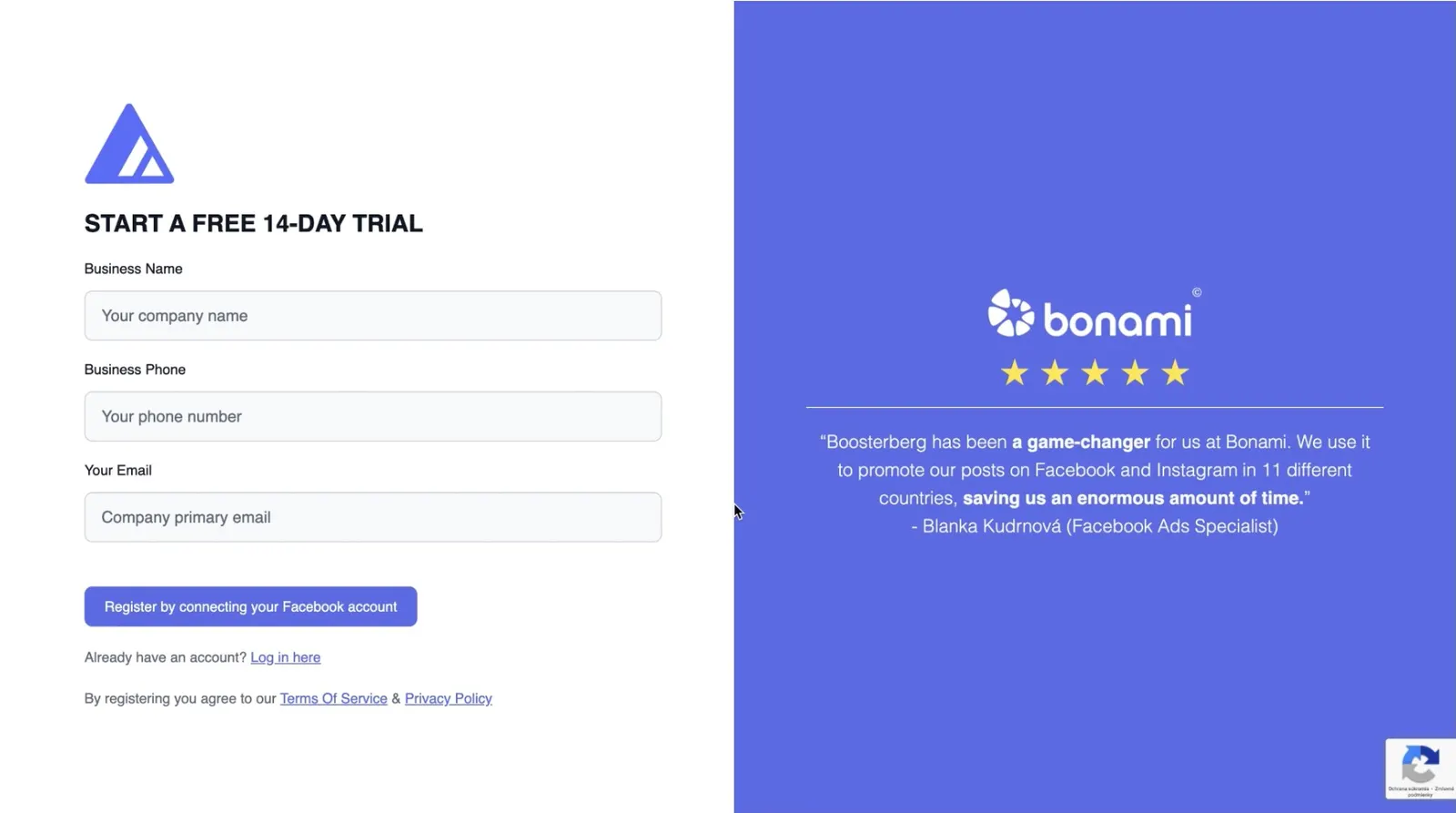
The Login & Account Setup process includes creating a new Boosterberg account using Facebook login and logging into existing accounts with the ability to switch between Facebook profiles.
How to Create a Boosterberg Account
Account Creation Steps
Logging In
If you're already signed into Facebook, your profile photo appears on the Login Page. Click "Continue as [Your Name]" for instant access. To use a different Facebook account, select "Switch Account" to reopen the authentication window.
Frequently Asked Questions
Boosterberg doesn't currently support MFA within the app. However, enabling MFA on your Facebook account adds security to your Boosterberg account.
Boosterberg only accesses data necessary for its service, Facebook Pages, Ad Accounts, and Business Manager settings. The platform doesn't store passwords or access private messages.
You cannot directly change the linked account, but you can invite another Facebook account to your Boosterberg agency and transfer ownership or grant admin access.
Yes, update your business name, email, and phone number anytime in the Business Settings section.
Yes, invite new members and assign roles such as Regular User, Manager, or Administrator (Owner).
Request deletion in Business Settings for your entire account, or delete just your user account in User Settings.